How to Set Up Your First Smartwatch
Discover
We test so you don't have to
See our buying guides→How to Set Up Your First Smartwatch
Getting your first smartwatch can be an exciting yet overwhelming experience. As someone who has tested various models, I understand the challenges of choosing the right one and setting it up to maximize its potential. Whether you’ve just snagged an Apple Watch Series 11 or are considering a budget option like the SAMSUNG Galaxy FIT 3, this guide will walk you through setting up your first smartwatch step-by-step.
Why This Matters
Smartwatches are designed to streamline your life and enhance your understanding of health and fitness. In a world where technology can be overwhelming, a proper setup can help you unlock the true potential of your device. With a smartwatch, you are empowered to monitor your health metrics, receive notifications, and manage your daily tasks all from your wrist. Proper configuration is crucial to leveraging these features, allowing you to customize your experience based on your unique needs.
Step-by-Step Guide
1. Choose the Right Smartwatch
Before the setup, it’s essential to have the right smartwatch. As mentioned, I highly recommend the Apple Watch Series 11 for its robust health features and seamless integration with iOS devices. On the other hand, if you're looking for an affordable option, the SAMSUNG Galaxy FIT 3 is an excellent choice with its long battery life and fitness tracking capabilities.
2. Charge Your Smartwatch
Before diving into setup, ensure your smartwatch is fully charged. Most models come with a magnetic charger or a wireless dock. Charge your smartwatch for at least an hour to ensure it has enough battery life for the initial setup process.
3. Download the Companion App
Most smartwatches require a companion app for setup and synchronization. For Apple watches, you’ll need the Apple Watch app (usually pre-installed on iPhones). For Samsung devices, download the Samsung Health app from the App Store or Google Play Store.
- Apple Users: Open the App Store, search for "Watch," and install the Apple Watch app.
- Android/Samsung Users: Search for "Samsung Health" in your respective app store.
4. Pair Your Smartwatch with Your Phone
After installing the companion app, open it and turn on Bluetooth on your phone.
- For Apple Watch: Hold your watch close to your iPhone. A pairing screen will appear on your iPhone, prompting you to tap "Continue." Follow the on-screen instructions.
- For Samsung: Open the Samsung Health app and select “Smartwatch” from the list. Follow the instructions to complete pairing.
5. Customize Your Settings
Once paired, you’ll be prompted to customize your settings.
- Notifications: Decide which notifications you want to receive on your watch. This is a great time to enable settings for messages, calls, and apps that matter most to you.
- Health Tracking: Set up your health tracking preferences. For the Apple Watch Series 11, you can configure heart rate monitoring, sleep tracking, and fitness goals.
- Watch Faces: Choose a watch face that resonates with your style and functionality preferences. The Apple Watch offers various customizable faces, while the Samsung Galaxy can download new watch faces from the Galaxy Store.
6. Install Additional Apps
Your smartwatch can be more than just a timepiece; it can also support various applications. From fitness to navigation, apps make your smartwatch more functional.
- For Apple Watch: Browse the App Store for apps like Strava, Spotify, and more.
- For Samsung: Use the Galaxy Store to find a range of fitness and productivity apps.
7. Add Accessories
To enhance your smartwatch experience, consider investing in additional accessories. For style and comfort, you can opt for a new strap:
- The Stylish SNBLK Floral Bands for Apple Watch offers a fun design to complement your appearance.
- Alternatively, the Slim Silicone Replacement Strap for Apple Watch - Starlight is a sleek option that’s perfect for daily wear.
8. Sync Your Smartwatch with Music and Other Tools
Many smartwatches allow you to directly sync with music streaming services. For Apple users, you can add playlists from Apple Music. Samsung Galaxy users can connect to Spotify or YouTube Music for an enjoyable workout experience.
9. Explore Health Tracking Features
A core advantage of using a smartwatch is health tracking. After customization, explore the health features your smartwatch offers.
- Monitor heart rate, workouts, sleep patterns, and even blood oxygen levels.
- For the Apple Watch Series 11, you can access the Health app on your phone to review and analyze your health data.
10. Personalize Watch Notifications
Don’t forget to personalize notifications. Set specific alerts for important calls, messages, and calendar events. This will help you stay organized without constantly checking your phone.
11. Update Your Software
To ensure you have the latest features and security enhancements, regularly check for software updates. For most smartwatches, you can find the update option in the companion app settings.
Our Top Recommendations
- Apple Watch Series 11 - At $329, this watch serves as your ultimate fitness companion, boasting advanced health tracking and seamless integration with the Apple ecosystem.
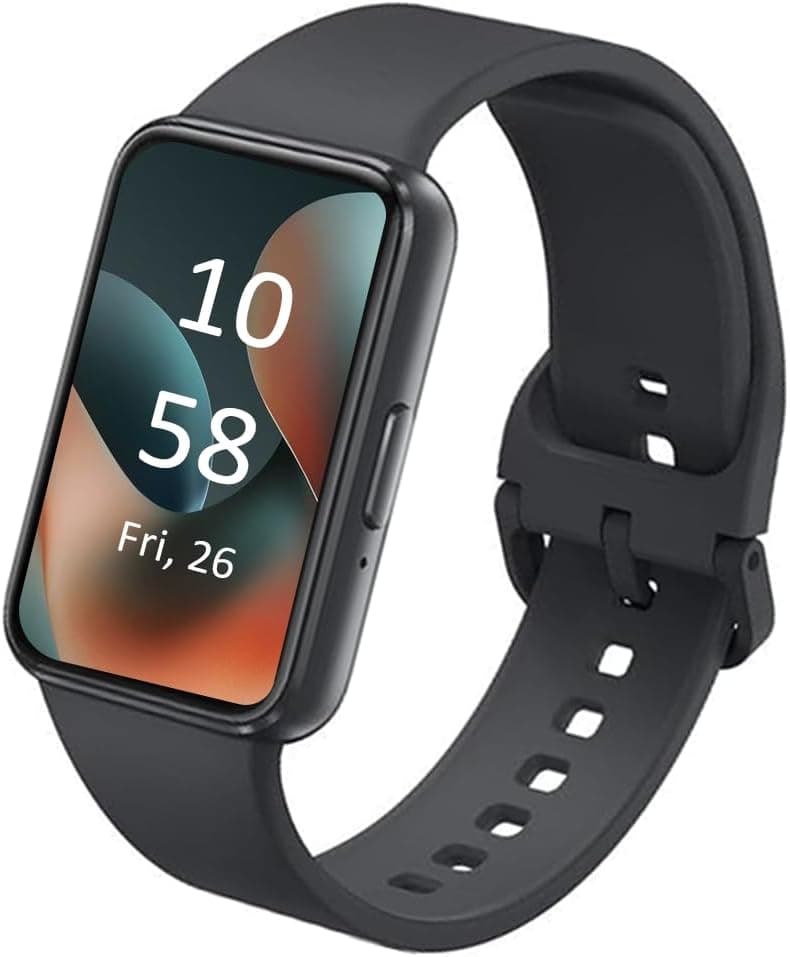
- SAMSUNG Galaxy FIT 3 - Priced at $42.95, this budget-friendly option offers an AMOLED display and long battery life while keeping you connected and active.
- SAMSUNG Galaxy Watch 5 - For those who want a more premium smartwatch, the Galaxy Watch 5 offers enhanced health features with a starting price of around $100.41.
Final Thoughts + Quick Decision Guide
Setting up your first smartwatch can transform how you manage your daily life and health. By following these steps, you’ll be well on your way to harnessing the full capabilities of your smartwatch. Remember to keep experimenting with different settings and features to truly discover what works best for you.
When deciding on your purchase, take into account the overall functionality, the compatibility with your devices, and your personal style. For some, the Apple Watch Series 11 may be the definitive choice for fitness tracking. Others may find value in the affordability of the SAMSUNG Galaxy FIT 3.
In any case, prioritize what features matter most to you, and enjoy your journey into the smart wearable world!
Discover